clawspark: Your Private OpenClaw AI Assistant That Never Phones Home
Clawspark provides a way to Install openclaw on your device in a secure way with a single command.
New to the jargon? Every term, flag, and benchmark number here is explained in plain English in the local LLM glossary.
On this page (21)
- The Problem
- What clawspark Does
- The Architecture
- The Bugs I Found and Fixed
- 1\. tools.profile does not default to "full"
- 2\. Node Host is required but not documented
- 3\. Baileys browser string rejected by WhatsApp
- 4\. web\search requires a Brave API key
- 5\. Agent narrates tool usage on WhatsApp
- 6\. syncFullHistory breaks group messages
- 7\. Mention detection has an early return that blocks text @mentions
- 8\. Systemd service missing Ollama environment variables
- 9\. OpenClaw bindings schema changed between versions
- Security
- Real Performance Numbers
- Hardware-Aware Model Selection with llmfit
- WhatsApp Integration: The Deep Cut
- Skills
- Getting Started
- What is Next
- Closing Thoughts
By Saiyam Pathak
OpenClaw has 314,000+ GitHub stars. It is the most popular open-source AI agent out there. It connects to WhatsApp and Telegram, does deep research, manages files, writes code, handles voice notes, and genuinely works as a personal assistant. The catch is that setting it up with a local LLM on NVIDIA hardware is a long process with security in place.
I spent some time getting it right on a DGX Spark. Then I automated the entire thing into one command. Along the way I found nine bugs, wrote three source patches, fought Ubuntu's managed Python, debugged WhatsApp's device linking protocol, and integrated a hardware-aware model selection engine. This is the full story.
The Problem #
NVIDIA's DGX Spark is a desktop AI supercomputer. GB10 Grace Blackwell chip, 128GB unified memory, 1 PFLOP of AI compute, 20-core ARM Cortex-A725 CPU. It sits on your desk, runs quietly, and has enough memory to load models that actually compete with cloud APIs. The hardware is not the bottleneck anymore.
The bottleneck is setup. If you want to run OpenClaw with a local model on DGX Spark, here is what you need to do manually:
-
Install Node.js 22+
-
Install OpenClaw via npm
-
Install Ollama
-
Figure out which model fits your hardware (there are hundreds)
-
Pull the model (can be 20-80GB)
-
Configure OpenClaw to point at your local Ollama instance
-
Set the correct environment variables (OLLAMA_API_KEY, OLLAMA_BASE_URL)
-
Run onboard, which sets half your config to wrong defaults
-
Fix tools.profile from "messaging" to "full"
-
Start the gateway, then start a separate Node Host process
-
Pair the Node Host to the gateway
-
Link WhatsApp via QR code
-
Patch three different JavaScript files in OpenClaw's dist folder
-
Install skills
-
Harden security
-
Set up voice transcription
Miss one step and things fail silently. The gateway starts, the model loads, but your agent can only send text messages because it has 5 tools instead of 15. Or WhatsApp linking fails because the browser identification string gets rejected. Or group messages never arrive because history sync is disabled.
NVIDIA's own docs at build.nvidia.com recommend gpt-oss-120b for DGX Spark and describe a manual multi-step process using Ollama or LM Studio. Their guide covers the inference setup but not WhatsApp integration, not voice transcription, not security hardening, and not the Node Host that the agent actually needs to do useful work. clawspark automates all of this, including the parts NVIDIA's guide does not cover.
What clawspark Does #
One command:
curl -fsSL https://clawspark.dev/install.sh | bashThat is it. The installer runs 14 steps. It detects your hardware, recommends a model, asks a few questions, then installs and configures everything. Here is the full flow:
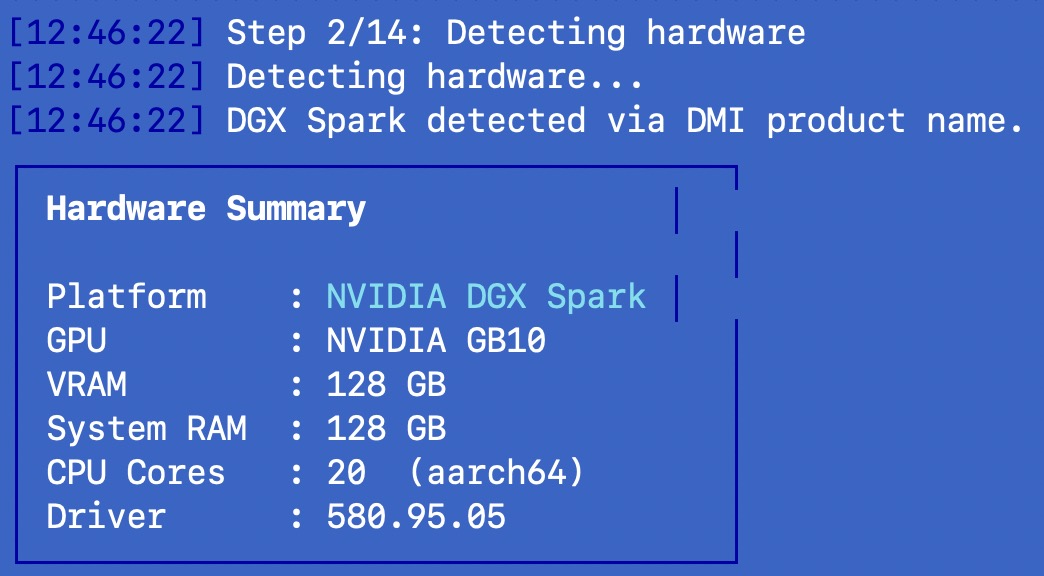
Step 1-2: Hardware detection. The script probes your GPU via nvidia-smi, reads DMI product name for DGX Spark identification, checks for Tegra signatures on Jetson, and measures total system memory. It classifies your hardware into one of four tiers: DGX Spark (128GB unified), Jetson AGX (64GB), RTX high-end (24GB+ VRAM), or RTX standard (8-24GB).
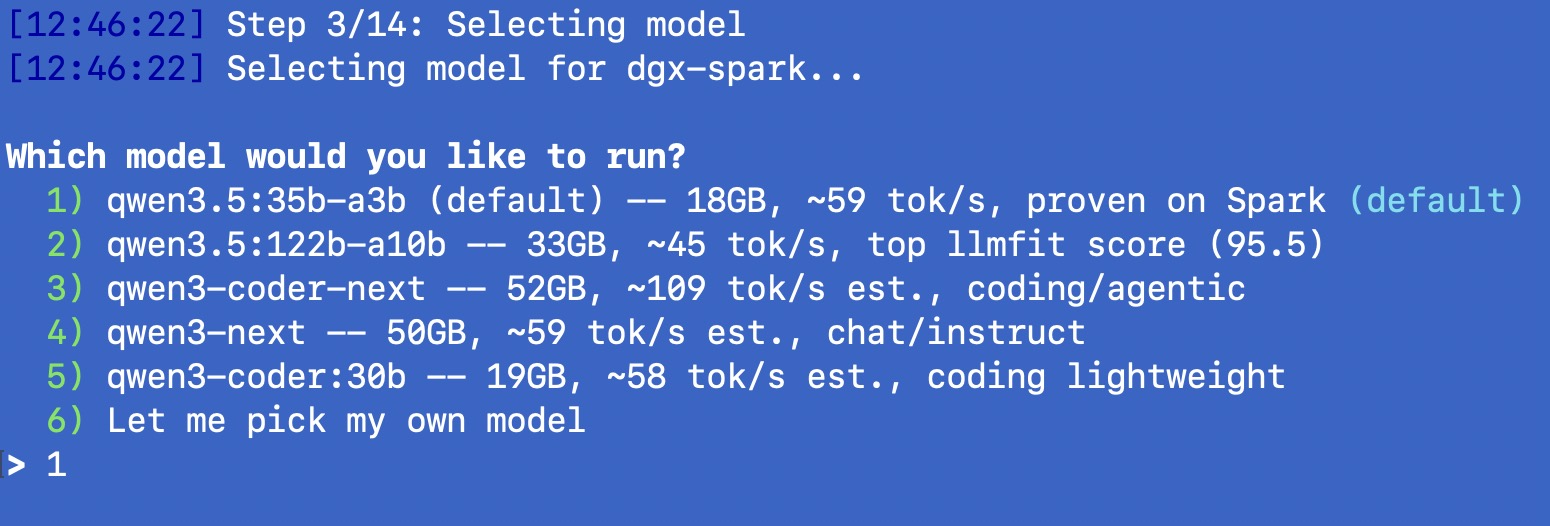
Step 3: Model selection. This is where it gets interesting. For DGX Spark, I curated a list of 5 models ranked by llmfit score and verified on real hardware:
| Model | Size | Estimated tok/s | llmfit Score | Use Case |
|---|---|---|---|---|
| qwen3.5:35b-a3b (default) | 18 GB | ~59 (measured) | 91.8 | General purpose |
| qwen3.5:122b-a10b | 33 GB | ~45 | 95.5 | Best quality MoE |
| qwen3-coder-next | 52 GB | ~109 | 93.6 | Coding/agentic |
| qwen3-next | 50 GB | ~59 | 92.2 | Chat/instruct |
| qwen3-coder:30b | 19 GB | ~58 | 94.1 | Coding lightweight |
For non-DGX-Spark hardware (RTX, Jetson, anything else), the installer uses llmfit to analyze your specific hardware, score hundreds of models, map the results to Ollama model IDs, verify each candidate actually exists on the Ollama library, and present the top 5 that fit. No hardcoded lists. Your GPU, your recommendations.
Step 4-5: Deployment and messaging. Choose local-only or hybrid (cloud fallback). Choose WhatsApp, Telegram, both, or skip messaging entirely. The web UI at /__openclaw__/canvas/ always works regardless.
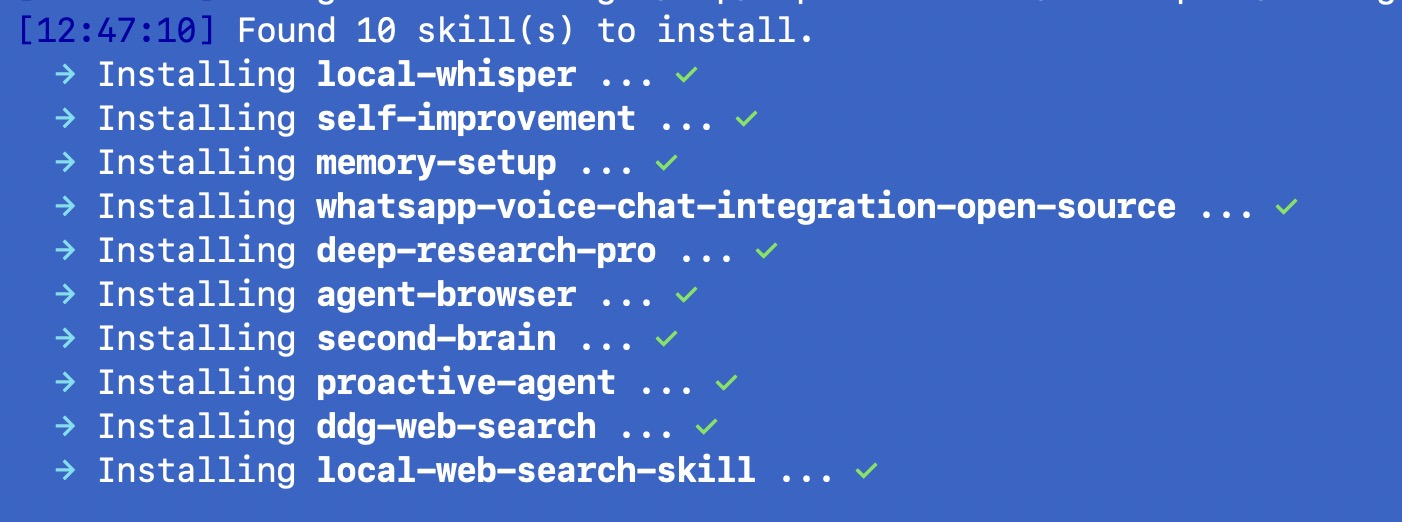
Step 6-14: The actual installation. Ollama install and model pull. Node.js 22 if needed. OpenClaw npm install. Config generation with correct Ollama endpoints. Onboard with overrides for all the wrong defaults. Three source patches (more on these below). Skills installation. Whisper voice setup. WhatsApp QR linking. Optional Tailscale for remote access. ClawMetry dashboard. Security hardening. Final verification.
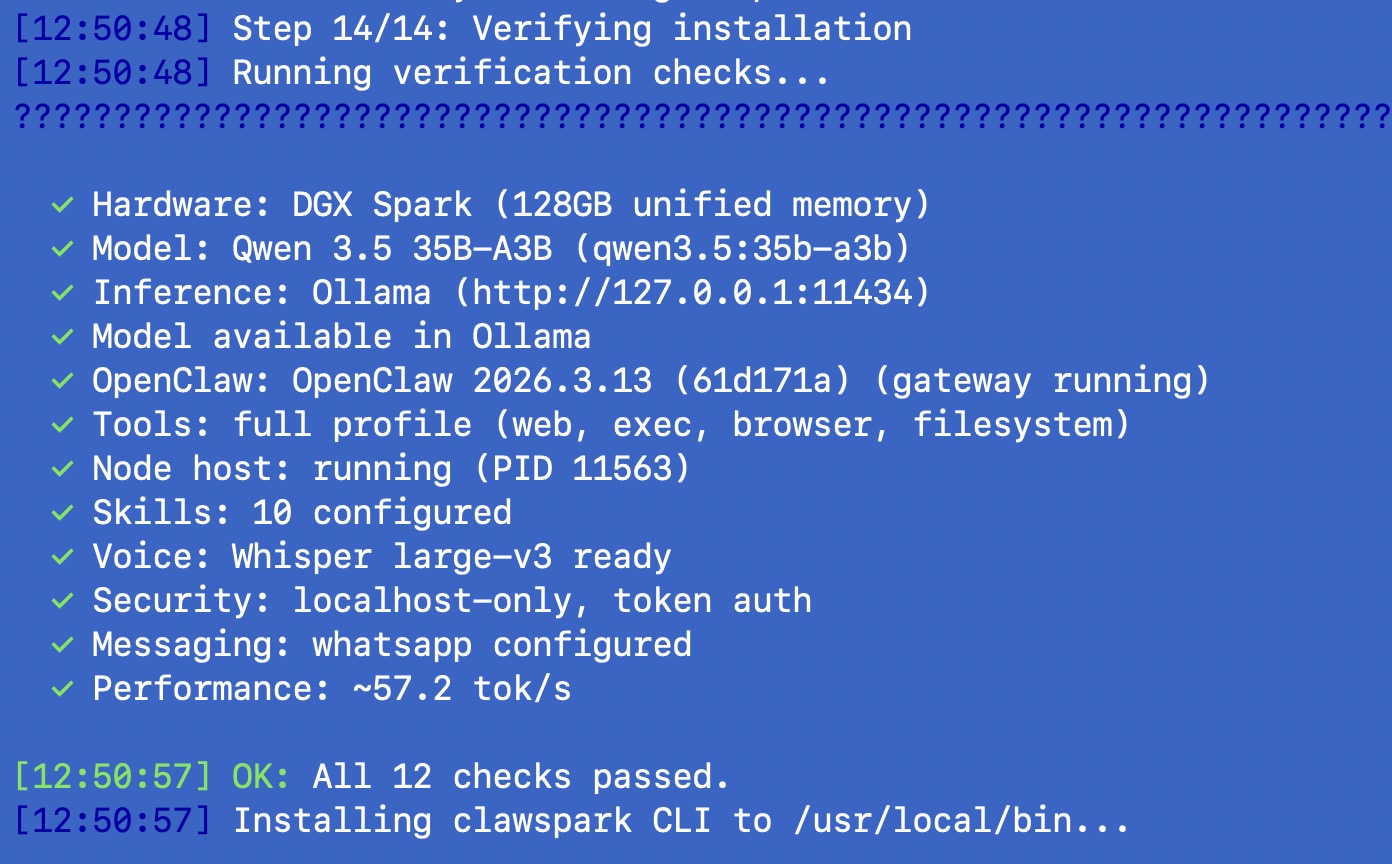
After installation, you get the clawspark CLI tool for day-to-day management: clawspark status, clawspark benchmark, clawspark restart, clawspark skills sync, clawspark airgap on/off, and more.

The Architecture #
Here is how the pieces fit together once everything is running:
WhatsApp / Telegram / Web UI (Canvas)
              |
    OpenClaw Gateway (port 18789)
     |            |            |
   Agent      Node Host     Baileys
   (LLM)      (Tools)      (WhatsApp Web)
     |            |
   Ollama      15 tools:
  (port 11434)  exec, read, write, edit,
     |          web_fetch, message, canvas,
   Model        process, cron, nodes,
   (GPU)        sessions_spawn, vision,
                transcribe, memory_search,
memory_storeThe Gateway is the central process. It manages the agent, routes messages from WhatsApp/Telegram/Web, and coordinates tool calls. The Agent is the LLM reasoning loop that decides what to do. The Node Host is a separate process that provides the actual tool implementations -- reading files, fetching web pages, executing code. Without the Node Host, the agent has only 5 basic messaging tools instead of the full 15.
Baileys is the WhatsApp Web client library that OpenClaw uses under the hood. It connects to WhatsApp's servers using a linked device session, the same way WhatsApp Web works in your browser. Messages flow from WhatsApp through Baileys to the Gateway, which sends them to the Agent, which calls tools on the Node Host, and the response flows back the same way.
The Bugs I Found and Fixed #
This section is the reason I wrote this post. These are all real issues I hit on real hardware, and some of them took hours to diagnose. If you are setting up OpenClaw manually, this list might save you a lot of time.
1. tools.profile does not default to "full" #
When you run openclaw onboard, it does not set tools.profile to "full". In v2026.3.2 it defaulted to "messaging" (5 tools only). This was partially fixed in v2026.3.7, which changed the default to "coding" -- better, but still missing tools like exec, process, cron, and nodes. The agent looks like it is working, but it cannot do everything it should.
The fix: openclaw config set tools.profile full after onboard completes. clawspark does this automatically.
2. Node Host is required but not documented #
The Gateway alone does not provide execution tools. You need a separate "Node Host" process (openclaw node run) that connects to the Gateway and provides filesystem, browser, and execution capabilities. Without it, even with tools.profile full, the agent has no tools to call. The Node Host also needs to be paired with the Gateway (device approval), which is another step that is easy to miss.
clawspark starts the Node Host, detects pending pairing requests, auto-approves them, and restarts the Node Host with the pairing token.
3. Baileys browser string rejected by WhatsApp #
OpenClaw's WhatsApp integration uses Baileys, which identifies itself as ["openclaw", "cli", VERSION] to WhatsApp's servers. WhatsApp rejects this during device linking. The QR code scan works, but the connection fails silently.
The fix is a source patch: replace the browser identification with ["Ubuntu", "Chrome", "22.0"], which WhatsApp accepts. This requires patching the compiled JavaScript in OpenClaw's dist folder. clawspark finds the relevant session files and applies the patch automatically.
4. web_search requires a Brave API key #
OpenClaw's built-in web_search tool requires a Brave Search API key. For a local setup, requiring an external API key defeats the purpose. clawspark works around this by configuring the agent's TOOLS.md to use DuckDuckGo Lite via web_fetch instead:
web_fetch with url="https://lite.duckduckgo.com/lite/?q=YOUR+QUERY"This gives the agent web search capabilities without any API keys or external dependencies.
5. Agent narrates tool usage on WhatsApp #
When you ask the agent a question on WhatsApp, it sends messages like "Let me search for that..." and "The search returned these results..." before giving you the actual answer. On WhatsApp, this means three or four notification buzzes for one question.
The fix is SOUL.md rules: explicit instructions to never narrate tool usage, use tools silently, and respond with one clean message.
6. syncFullHistory breaks group messages #
OpenClaw defaults to syncFullHistory: false in its Baileys configuration. This means after a fresh WhatsApp link, Baileys never receives group sender keys. The result: groups are completely silent. No messages arrive, no errors are logged. It just looks like nobody is talking.
The fix: patch syncFullHistory: false to syncFullHistory: true in the compiled session files. clawspark finds and patches all relevant files automatically.
7. Mention detection has an early return that blocks text @mentions #
OpenClaw's mention detection in group chats has a return false early exit when JID (WhatsApp ID) mentions exist but do not match the bot's JID. The problem is that WhatsApp resolves @mentions to JIDs, and sometimes the resolved JID does not match the bot's linked phone JID. The early return prevents the text-pattern fallback from ever running, so typing @botname in a group never triggers the bot.
The fix: remove the return false line so the text-pattern fallback always has a chance to match. Another source patch to the compiled JavaScript.
8. Systemd service missing Ollama environment variables #
When OpenClaw's gateway runs as a systemd service, it does not inherit the shell environment. The OLLAMA_API_KEY and OLLAMA_BASE_URL variables are missing, so the gateway cannot reach Ollama. The model appears to load, but every inference call fails.
clawspark writes the environment variables to a gateway.env file, adds them to the user's shell profile (.bashrc or .zshrc), and sources them before starting any OpenClaw process.
9. OpenClaw bindings schema changed between versions #
This one cost me an entire evening. Earlier versions of OpenClaw supported a bindings config for routing different message sources to different agents (e.g., full tools in DMs, restricted tools in groups). Starting with v2026.3.2, the bindings schema changed and the old format causes a validation error at startup: Invalid config: bindings.0: Invalid input. This is not a bug per se -- the schema evolved -- but any guide or config from earlier versions will break silently.
The fix: remove bindings entirely and use a single agent with context-aware rules. SOUL.md and TOOLS.md contain explicit sections for DM context (full tools) and group context (Q&A only). The agent enforces the boundary at the prompt level. Groups also use requireMention: true and groupPolicy: open at the config level so the bot only responds when @mentioned.
Security #
Running a local AI agent is not automatically secure. clawspark applies multiple layers:
Gateway binding. The OpenClaw gateway binds to localhost only. It is not accessible from other machines on your network unless you explicitly set up Tailscale.
Firewall rules. UFW is configured to deny all incoming connections except SSH. Outgoing traffic is allowed by default, or blocked entirely in air-gap mode.
Token authentication. A random 256-bit token is generated during installation. Only clients with this token can talk to the gateway API.
Context-aware tool restrictions. In direct messages, the owner gets full access to all 15 tools. In group chats, the agent restricts itself to Q&A only (message, web_fetch, memory). This is enforced at the prompt level via SOUL.md, which contains explicit rules for each context. Groups also require @mention to activate.
SOUL.md and TOOLS.md. These workspace files contain the agent's identity, capabilities, and absolute rules. No credential disclosure (applies to all users, including the owner). No system information in groups. No self-modification. Both files are set to chmod 444 (read-only) so the agent cannot edit its own rules.
Air-gap mode. For maximum isolation, clawspark airgap on blocks all outbound internet traffic via UFW. Only local network and loopback traffic is allowed. The model, the agent, and all tools run entirely offline.
One honest caveat: local models do not have the same safety filters that cloud providers build into their APIs. That is both a feature (no arbitrary refusals) and a responsibility. You should think carefully about who has access to message your bot.
Real Performance Numbers #
All numbers below are from an actual DGX Spark running Linux 6.14.0-1015-nvidia (arm64), Ollama 0.17.7, Node.js v22.22.1, OpenClaw v2026.3.13, with Qwen 3.5 35B-A3B:
| Metric | Value |
|---|---|
| Cold model load (first query) | ~41 seconds |
| Warm prompt evaluation | ~265 tok/s |
| Warm text generation | ~59 tok/s |
| End-to-end WhatsApp response | 15-45 seconds |
The 59 tok/s generation speed is fast enough to feel responsive. You send a question on WhatsApp and the response arrives in 15-45 seconds depending on complexity. The cold load penalty only hits on the first query after a restart. After that, the model stays in memory.
To put this in perspective: 59 tok/s means the model generates roughly 45-50 words per second. A typical response of 200 words takes about 4 seconds of pure generation time. The rest of the 15-45 second latency comes from the WhatsApp message routing, tool calls (if the agent needs to search the web or read a file), and response formatting.
Is this as fast as GPT-4o or Claude via cloud API? No. Cloud inference on dedicated hardware with massive batching will always be faster for raw token throughput. But it is fast enough for practical use, and your data never leaves your desk. That is the tradeoff.
For the 122B-A10B MoE model (the highest-ranked by llmfit), expect roughly 45 tok/s. Slightly slower but you get access to the full 122B model's knowledge with only 10B active parameters. The DGX Spark's 128GB unified memory can comfortably hold this model (33GB) with plenty of room for the KV cache.
Hardware-Aware Model Selection with llmfit #
One of the hardest problems with local AI is knowing which model to use. There are hundreds of models on Ollama, each with different sizes, quantizations, and performance characteristics. Picking the wrong one means either wasting memory (model too small for the hardware) or crashing on load (model too big).
I integrated llmfit to solve this. llmfit is a Rust-based CLI tool that detects your hardware (GPU, VRAM, RAM, CPU), scores every model in its database for fit, speed, and quality, and tells you which ones will actually run well.
For DGX Spark, I ran llmfit on the real hardware and it correctly detected the NVIDIA GB10 with 119.7 GB unified memory and CUDA backend. I then cross-referenced its top recommendations against the Ollama library to verify each model is actually pullable. The result is the curated list of 5 models you see during installation.
For all other hardware, the installer runs llmfit live:
-
Install llmfit (one curl command, Rust binary)
-
Run
llmfit recommend --json -n 20 --min-fit good -
Map each HF-style model name to an Ollama model ID (40+ regex patterns)
-
Verify each candidate exists on Ollama's library (HTTP check against ollama.com)
-
Present the top 5 verified models with score, estimated tok/s, and fit level
If llmfit is not available or fails, the installer falls back to curated lists per hardware tier. No hardcoded guessing. Your GPU, your recommendations.
WhatsApp Integration: The Deep Cut #
Getting WhatsApp working reliably was the hardest part of this entire project. Here is why.
OpenClaw uses the Baileys library, which is an unofficial WhatsApp Web client. It works by emulating a linked device session, the same protocol that WhatsApp Web uses in your browser. The connection is end-to-end encrypted and goes through WhatsApp's servers. There is no official API involved.
This creates three categories of problems:
Protocol issues. WhatsApp regularly changes its protocol, and Baileys has to keep up. The browser string rejection (bug #3) is an example. WhatsApp started rejecting non-standard browser identifiers at some point, and OpenClaw's default string got caught.
Group message handling. WhatsApp groups use Signal's sender keys protocol. When you first link a device, it needs to receive sender keys from all group participants before it can decrypt group messages. Setting syncFullHistory: false (bug #6) prevents this initial key exchange, making groups completely silent.
Mention routing. In WhatsApp groups, @mentions get resolved to JIDs (WhatsApp internal user IDs). The bot's JID might not match its linked phone number's JID in all cases. The early return in mention detection (bug #7) means the bot never sees @mentions in groups unless you patch the code.
clawspark applies all three patches automatically and re-applies them after updates (since npm update overwrites the dist files). Groups require @mention to activate, and the agent is restricted to Q&A only in group context. Full tool access is reserved for direct messages with the owner.
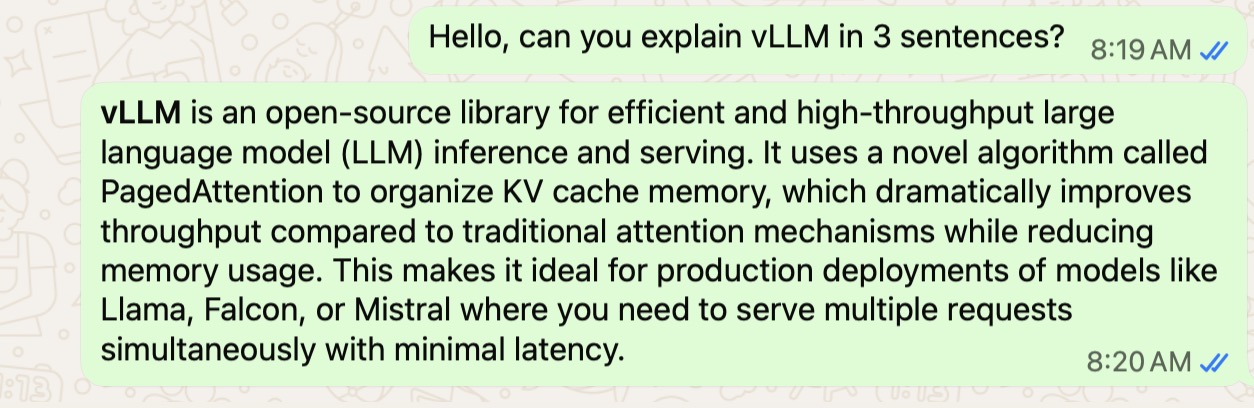
Voice notes work through the local-whisper skill, which runs Whisper (OpenAI's open-source speech-to-text model) locally on the GPU. On DGX Spark, it uses the large-v3 model for maximum transcription accuracy. On Jetson, it drops to the small model. On RTX, it scales based on available VRAM. The audio never leaves your machine.
Skills #
clawspark installs 10 skills by default, verified against the OpenClaw skill registry:
| Category | Skills |
|---|---|
| Core | local-whisper, self-improvement, memory-setup |
| Voice | whatsapp-voice-chat-integration-open-source |
| Productivity | deep-research-pro, agent-browser |
| Knowledge | second-brain, proactive-agent |
| Web Search | ddg-web-search, local-web-search-skill |
Web search works without any API keys. The agent uses DuckDuckGo Lite via web_fetch, fetches result URLs, and composes answers from the content. No Brave API key, no Google API key, no external dependencies.
You can add or remove skills with clawspark skills add <name> and clawspark skills remove <name>. The skills.yaml file in your config directory is the source of truth, and clawspark skills sync reads it and installs everything.
Getting Started #
Tested and verified on DGX Spark. Should also work on Mac (Apple Silicon M1/M2/M3/M4), RTX desktops, and Jetson. The installer has fallbacks for all platforms -- macOS uses Homebrew, Ollama runs natively on Apple Silicon, and llmfit handles model selection. These platforms have not been end-to-end tested yet. Community testing welcome -- open an issue if you try it on different hardware.
curl -fsSL https://clawspark.dev/install.sh | bashOr with specific options:
bash install.sh --model=qwen3.5:122b-a10b --messaging=whatsappAfter installation:
clawspark status      # Check all components
clawspark benchmark   # Run a performance benchmark
clawspark logs        # Tail the gateway logs
clawspark restart     # Restart all services
clawspark update      # Update OpenClaw and re-apply patches
clawspark airgap on # Enable air-gap modeThe web UI is at http://localhost:18789/__openclaw__/canvas/. The metrics dashboard is at http://localhost:8900.
Source code and documentation: clawspark.dev
What is Next #
A few things I am working on:
Multi-model routing. Use the fast 35B model for simple queries and automatically route complex reasoning tasks to the 122B model. The hardware can handle both loaded simultaneously since 128GB is enough for both.
Better metrics. ClawMetry currently shows basic gateway stats. I want per-query latency tracking, token usage by model, and cost-equivalent comparisons (how much this query would have cost on cloud APIs).
More hardware testing. The Jetson and RTX paths in clawspark are written and should work (hardware detection, llmfit model selection, Ollama setup), but I have only done full end-to-end testing on DGX Spark. Jetson AGX Orin is next. For RTX desktops, open a terminal and run the install command directly -- no SSH needed. If you try it on your hardware, please open an issue with your results.
Upstream patches. The three source patches I wrote are necessary because of bugs in OpenClaw's compiled code. Ideally these get fixed upstream so the patches become unnecessary. I plan to submit them.
Closing Thoughts #
Two years ago, running a capable AI model locally meant a server rack, a cooling system, and deep knowledge of CUDA. Today it means a quiet box on your desk and a bash script.
The gap between local and cloud AI is closing fast. Not because local is getting as fast as cloud (dedicated data center hardware will always win on raw throughput), but because local is getting good enough. 59 tokens per second from a 35B-parameter MoE model on a desktop machine is good enough for a personal assistant. The tradeoff is straightforward: you get complete data privacy and zero ongoing cost in exchange for slightly higher latency.
clawspark is just the glue. It takes hardware that is already capable (DGX Spark), software that is already good (OpenClaw, Ollama), a model that is already smart (Qwen 3.5), and a tool selector that actually knows your hardware (llmfit), and removes the friction between them. The one-click part is not the innovation. The innovation is all the edge cases, patches, and defaults that make it actually work when you run it for the first time on real hardware.
If you have a DGX Spark, an RTX GPU, a Mac with Apple Silicon, or a Jetson, give it a try. One command, a few questions, and you have a private AI assistant that genuinely never phones home.
GitHub: github.com/saiyam1814/claw-spark Website: clawspark.dev
Saiyam is working as Head of DevRel at vCluster Labs. He is the founder of Kubesimplify, focusing on simplifying cloud-native & AI infrastructure. He is KubeCon Co-chair and has worked on many facets of Kubernetes, including machine learning platforms, scaling, multi-cloud, & managed Kubernetes services. When not coding, Saiyam contributes to the community by writing blogs and organizing local meetups for Kubernetes and CNCF. He is also a CNCF TAG OpsRes Chair & can be reached on Twitter @saiyampathak.
Get new posts in your inbox.
Spotted a typo or want to improve this post? Edit on GitHub →