Kubernetes 1.23 + containerd
Setup Kubernetes 1.23 with containerd as the container runtime on Ubuntu 20.04 machines with single controlplane and three worker nodes.


In this post, I will tell you how to set up a simple Kubernetes 1.23 cluster bootstrapped using kubeadm with containerd as the container runtime. This will be a simple setup with 1 control plane node and 3 worker nodes on Ubuntu 20.04 compute instances.
Prerequisites
- 4 Ubuntu 20.04 instances with ssh access to them, you can use any cloud provider to launch these instances
- Each instance should have a minimum of 4GB or ram
Here I have 4 instances in place
| controlplane | 212.2.245.195 |
|---|---|
| worker1 | 212.2.247.25 |
| worker2 | 212.2.241.135 |
| worker3 | 212.2.245.36 |
Let's being!!
Step 1 - Run this on all the machines #
**Kubeadm | kubectl | kubelet install **
curl -s https://packages.cloud.google.com/apt/doc/apt-key.gpg | sudo apt-key add -
echo "deb https://apt.kubernetes.io/ kubernetes-xenial main" | sudo tee /etc/apt/sources.list.d/kubernetes.list
sudo apt update -y
sudo apt -y install vim git curl wget kubelet=1.23.0-00 kubeadm=1.23.0-00 kubectl=1.23.0-00
sudo apt-mark hold kubelet kubeadm kubectlDisable swap - swap should be disabled in order for kubelet to work properly. Though there is a KEP to make this work which is in alpha since 1.22 Kubernetes version and marked in beta for 1.24.
sudo sed -i '/ swap / s/^\(.*\)$/#\1/g' /etc/fstab
sudo swapoff -aLoad the br_netfilter module and let iptables see bridged traffic
sudo modprobe overlay
sudo modprobe br_netfilter
sudo tee /etc/sysctl.d/kubernetes.conf<<EOF
net.bridge.bridge-nf-call-ip6tables = 1
net.bridge.bridge-nf-call-iptables = 1
net.ipv4.ip_forward = 1
EOF
sysctl --system
**Setup Containerd **
cat <<EOF | sudo tee /etc/modules-load.d/containerd.conf
overlay
br_netfilter
EOF

sudo modprobe overlay
sudo modprobe br_netfilter

# Setup required sysctl params, these persist across reboots.
cat <<EOF | sudo tee /etc/sysctl.d/99-kubernetes-cri.conf
net.bridge.bridge-nf-call-iptables  = 1
net.ipv4.ip_forward                 = 1
net.bridge.bridge-nf-call-ip6tables = 1
EOF

# Apply sysctl params without reboot
sudo sysctl --system

#Install and configure containerd
curl -fsSL https://download.docker.com/linux/ubuntu/gpg | sudo apt-key add -
sudo add-apt-repository "deb [arch=amd64] https://download.docker.com/linux/ubuntu $(lsb_release -cs) stable"
sudo apt update -y
sudo apt install -y containerd.io
sudo mkdir -p /etc/containerd
containerd config default | sudo tee /etc/containerd/config.toml

#Start containerd
sudo systemctl restart containerd
sudo systemctl enable containerd**Configuring the kubelet cgroup driver
**
From 1.22 onwards if you do not set the cgroupDriver field under KubeletConfiguration, kubeadm will default it to systemd. So you do not need to do anything here but if you want you can refer to this documentation.
**Pull the images ** Pull the images for Kubernetes 1.23 version.
sudo kubeadm config images pull --cri-socket /run/containerd/containerd.sock --kubernetes-version v1.23.0Step2 - Run the kubeadm init command on the control plane node #
Here the pod network CIDR is dependent on the CNI you will be installing later on, so in this case, I am using flannel, and --control-plane-endpoint will be the public IP for the instance(it can be private IP as well but if you want to access it from outside of the node by using Kubeconfig then you need to give the public IP).
sudo kubeadm init --pod-network-cidr=10.244.0.0/16 --upload-certs --kubernetes-version=v1.23.0 --control-plane-endpoint=212.2.245.195 --ignore-preflight-errors=Mem --cri-socket /run/containerd/containerd.sockThe above command will give the following output
[init] Using Kubernetes version: v1.23.0
[preflight] Running pre-flight checks
[preflight] Pulling images required for setting up a Kubernetes cluster
[preflight] This might take a minute or two, depending on the speed of your internet connection
[preflight] You can also perform this action in beforehand using 'kubeadm config images pull'
[certs] Using certificateDir folder "/etc/kubernetes/pki"
[certs] Generating "ca" certificate and key
[certs] Generating "apiserver" certificate and key
[certs] apiserver serving cert is signed for DNS names [controlplane-a5cc-7809a2 kubernetes kubernetes.default kubernetes.default.svc kubernetes.default.svc.cluster.local] and IPs [10.96.0.1 192.168.1.3 212.2.245.195]
[certs] Generating "apiserver-kubelet-client" certificate and key
[certs] Generating "front-proxy-ca" certificate and key
[certs] Generating "front-proxy-client" certificate and key
[certs] Generating "etcd/ca" certificate and key
[certs] Generating "etcd/server" certificate and key
[certs] etcd/server serving cert is signed for DNS names [controlplane-a5cc-7809a2 localhost] and IPs [192.168.1.3 127.0.0.1 ::1]
[certs] Generating "etcd/peer" certificate and key
[certs] etcd/peer serving cert is signed for DNS names [controlplane-a5cc-7809a2 localhost] and IPs [192.168.1.3 127.0.0.1 ::1]
[certs] Generating "etcd/healthcheck-client" certificate and key
[certs] Generating "apiserver-etcd-client" certificate and key
[certs] Generating "sa" key and public key
[kubeconfig] Using kubeconfig folder "/etc/kubernetes"
[kubeconfig] Writing "admin.conf" kubeconfig file
[kubeconfig] Writing "kubelet.conf" kubeconfig file
[kubeconfig] Writing "controller-manager.conf" kubeconfig file
[kubeconfig] Writing "scheduler.conf" kubeconfig file
[kubelet-start] Writing kubelet environment file with flags to file "/var/lib/kubelet/kubeadm-flags.env"
[kubelet-start] Writing kubelet configuration to file "/var/lib/kubelet/config.yaml"
[kubelet-start] Starting the kubelet
[control-plane] Using manifest folder "/etc/kubernetes/manifests"
[control-plane] Creating static Pod manifest for "kube-apiserver"
[control-plane] Creating static Pod manifest for "kube-controller-manager"
[control-plane] Creating static Pod manifest for "kube-scheduler"
[etcd] Creating static Pod manifest for local etcd in "/etc/kubernetes/manifests"
[wait-control-plane] Waiting for the kubelet to boot up the control plane as static Pods from directory "/etc/kubernetes/manifests". This can take up to 4m0s
[apiclient] All control plane components are healthy after 20.508399 seconds
[upload-config] Storing the configuration used in ConfigMap "kubeadm-config" in the "kube-system" Namespace
[kubelet] Creating a ConfigMap "kubelet-config-1.23" in namespace kube-system with the configuration for the kubelets in the cluster
NOTE: The "kubelet-config-1.23" naming of the kubelet ConfigMap is deprecated. Once the UnversionedKubeletConfigMap feature gate graduates to Beta the default name will become just "kubelet-config". Kubeadm upgrade will handle this transition transparently.
[upload-certs] Storing the certificates in Secret "kubeadm-certs" in the "kube-system" Namespace
[upload-certs] Using certificate key:
f494d447a8f290f287ffd4c3028b0024392c731e2d4b98df2b4f97d34741b7da
[mark-control-plane] Marking the node controlplane-a5cc-7809a2 as control-plane by adding the labels: [node-role.kubernetes.io/master(deprecated) node-role.kubernetes.io/control-plane node.kubernetes.io/exclude-from-external-load-balancers]
[mark-control-plane] Marking the node controlplane-a5cc-7809a2 as control-plane by adding the taints [node-role.kubernetes.io/master:NoSchedule]
[bootstrap-token] Using token: zxrkhi.6m5vgdjbn8dk4n0x
[bootstrap-token] Configuring bootstrap tokens, cluster-info ConfigMap, RBAC Roles
[bootstrap-token] configured RBAC rules to allow Node Bootstrap tokens to get nodes
[bootstrap-token] configured RBAC rules to allow Node Bootstrap tokens to post CSRs in order for nodes to get long term certificate credentials
[bootstrap-token] configured RBAC rules to allow the csrapprover controller automatically approve CSRs from a Node Bootstrap Token
[bootstrap-token] configured RBAC rules to allow certificate rotation for all node client certificates in the cluster
[bootstrap-token] Creating the "cluster-info" ConfigMap in the "kube-public" namespace
[kubelet-finalize] Updating "/etc/kubernetes/kubelet.conf" to point to a rotatable kubelet client certificate and key
[addons] Applied essential addon: CoreDNS
[addons] Applied essential addon: kube-proxy

Your Kubernetes control-plane has initialized successfully!

To start using your cluster, you need to run the following as a regular user:

  mkdir -p $HOME/.kube
  sudo cp -i /etc/kubernetes/admin.conf $HOME/.kube/config
  sudo chown $(id -u):$(id -g) $HOME/.kube/config

Alternatively, if you are the root user, you can run:

  export KUBECONFIG=/etc/kubernetes/admin.conf

You should now deploy a pod network to the cluster.
Run "kubectl apply -f [podnetwork].yaml" with one of the options listed at:
  https://kubernetes.io/docs/concepts/cluster-administration/addons/

You can now join any number of the control-plane node running the following command on each as root:

  kubeadm join 212.2.245.195:6443 --token zxrkhi.6m5vgdjbn8dk4n0x \
	--discovery-token-ca-cert-hash sha256:07597e98c68c34d611380d37d7d102e4118647372b84e3332c04861f649abd1d \
	--control-plane --certificate-key f494d447a8f290f287ffd4c3028b0024392c731e2d4b98df2b4f97d34741b7da

Please note that the certificate-key gives access to cluster sensitive data, keep it secret!
As a safeguard, uploaded-certs will be deleted in two hours; If necessary, you can use
"kubeadm init phase upload-certs --upload-certs" to reload certs afterward.

Then you can join any number of worker nodes by running the following on each as root:

kubeadm join 212.2.245.195:6443 --token zxrkhi.6m5vgdjbn8dk4n0x \
	--discovery-token-ca-cert-hash sha256:07597e98c68c34d611380d37d7d102e4118647372b84e3332c04861f649abd1d```


**Export KUBECONFIG and install CNI Flannel
**mkdir -p $HOME/.kube sudo cp -i /etc/kubernetes/admin.conf $HOME/.kube/config sudo chown $(id -u):$(id -g) $HOME/.kube/config export KUBECONFIG=/etc/kubernetes/admin.conf kubectl apply -f https://github.com/coreos/flannel/raw/master/Documentation/kube-flannel.yml
## Step 3 Run the join command on all the worker nodes
kubeadm join 212.2.245.195:6443 --token zxrkhi.6m5vgdjbn8dk4n0x \
--discovery-token-ca-cert-hash sha256:07597e98c68c34d611380d37d7d102e4118647372b84e3332c04861f649abd1d [preflight] Running pre-flight checks [preflight] Reading configuration from the cluster... [preflight] FYI: You can look at this config file with 'kubectl -n kube-system get cm kubeadm-config -o yaml' W0323 11:13:44.062189 5069 utils.go:69] The recommended value for "resolvConf" in "KubeletConfiguration" is: /run/systemd/resolve/resolv.conf; the provided value is: /run/systemd/resolve/resolv.conf [kubelet-start] Writing kubelet configuration to file "/var/lib/kubelet/config.yaml" [kubelet-start] Writing kubelet environment file with flags to file "/var/lib/kubelet/kubeadm-flags.env" [kubelet-start] Starting the kubelet [kubelet-start] Waiting for the kubelet to perform the TLS Bootstrap...
This node has joined the cluster:
- Certificate signing request was sent to apiserver and a response was received.
- The Kubelet was informed of the new secure connection details.
Run 'kubectl get nodes' on the control-plane to see this node join the cluster.
## Step 4 Nginx Test

You can copy the kubeconfig file from the controlplane node(~/.kube/config ) to local and export the KUBECONFIG variable or directly access the cluster from the controlplane node.
kubectl get nodes
NAME STATUS ROLES AGE VERSION
controlplane-a5cc-7809a2 Ready control-plane,master 60m v1.23.0
worker-1-937f-f397dd Ready
The cluster is up and running with single controlplane and 3 worker nodes.

Now run nginx
kubectl run nginx --image=nginx pod/nginx created
kubectl expose pod nginx --type=NodePort --port 80 service/nginx exposed
kubectl get pods NAME READY STATUS RESTARTS AGE nginx 1/1 Running 0 48s
kubectl get svc nginx
NAME TYPE CLUSTER-IP EXTERNAL-IP PORT(S) AGE
nginx NodePort 10.100.218.181
Access the service using Node public IP:31393(make sure your firewall rules are properly set to allow traffic to required ports)
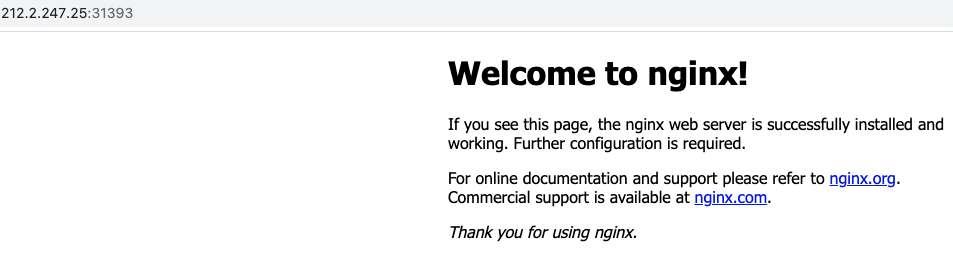
YAY!! you have successfully setup a self managed Kubernetes cluster, version 1.23.0 and containerd as the container runtime.
Join the awesome kubesimplify community for more such blogs!
Get new posts in your inbox.
Spotted a typo or want to improve this post? Edit on GitHub →