Linux System Directories Explained
If you are a beginner and want to get familiar with the Linux file system. This blog is for you! Learn functionalities of Linux system Directories.


On this page (14)
Introduction to Linux #
Linux is an open source operating system that makes it possible for you to play with your computer. It was created in 1991 by a University of Helsinki student, Linus Torvalds. His goal was to create a free version of the MINIX(Mini+Unix) Operating system, which was based upon Unix, and today it's used everywhere, such as, in the vast majority of web servers, embedded systems like Smart TV, and Mobile devices running android.
By far it is the best choice for your personal computer with many different distros to choose from, like Debian, Arch and Fedora to name a few. Just like Windows and macOS, Linux manages a computer's Memory and Processes, allowing hardware to communicate with the software.
When you fire up a Linux machine, a bootloader will first put the system into memory. At its core, we have the kernel, which is like a layer between the software and the hardware which makes everything possible. Speaking plainly, It basically converts input/output requests from software into an instruction set for the hardware. Now beyond the Kernel, we have the applications that make the OS usable for the users which are provided primarily via the GNU project. For example, a shell to interact with the kernel from the command line, developer utilities and countless other applications.
Linux Directories aka “Folders” #
Everything in Linux is represented by a file or a folder which we call Directories, it's a cryptic mesh of directories defined by the File System Hierarchy Standard.
To get started, open your terminal, assuming you are on a Linux machine, WSL is fine as well. Else you can also start a free Linux instance on Google Cloud Shell.
Notice how we are logged in as a root user on the Linux machine
user@host:~$Here user is the username of the user and host is the name of your laptop or computer.
Currently, we are in the home directory of the user, which is denoted by ~.
Type pwd to see the “Present Working Directory” of the root user.
 user@host:~$ pwd
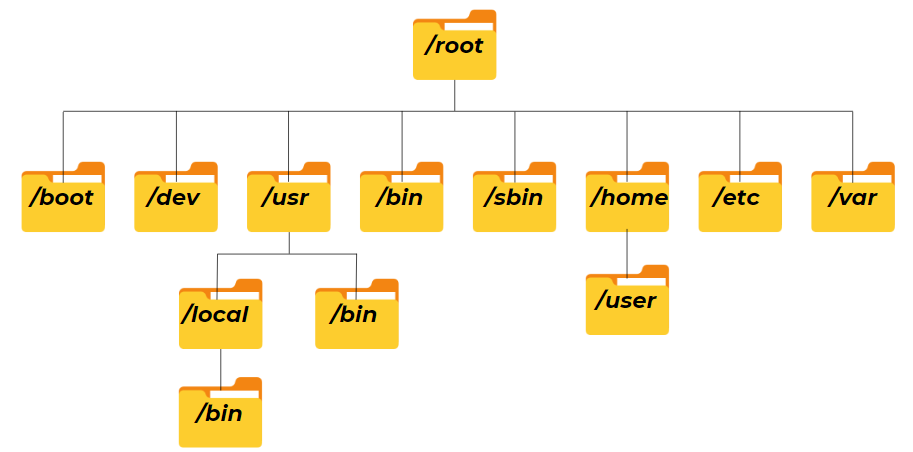
/home/userNow use cd / to go to the /root directory of the file system. It is the first or top-most directory in a hierarchy. It can be compared to the trunk of a tree, as the starting point where all branches originate from.
user@host:~$ cd /
user@host:/$As you can see, we are in root now. Denoted by /. Type ls to see all the subdirectories in the system. These are your critical system files.
user@host:/$ ls
bin     dev      home    lib    lib64    lost+found    mnt     lib32
proc    root     sbin    srv    tmp      var           boot    libx32
etc init media opt run sys usr snapLet us now learn about various different system directories.
1. 📂/bin #

This directory is also known as “Binaries”. It contains executables that are essential to the entire operating system. You can run these binaries from the command line at any time. Commands such as ls, clear, etc are stored here.
You can view them by first navigating to the /bin directory and running ls.
user@host:/$ cd bin
user@host:/bin$ ls2. 📂/sbin #

This stands for “Super User Binaries”, it contains system binaries that can only be executed by the root user(also known as Super-User). For example, commands such as mount, deluser or adduser.
Note:
sudo(Superuser Do) as a prefix is used to execute such commands.
user@host:/$ sudo <command>The same method is followed to view executable programs in this directory, which is:
user@host:/bin$ cd ..
user@host:/$ cd sbin
user@host:/sbin$ ls3. 📂/lib #

/lib stands for “Libraries”. /lib directory contains essential libraries and kernel modules. It also contains shared library images needed to boot the system and run the commands in the root filesystem, ie. by binaries in /bin and /sbin.
/lib32, /libx32 and /lib64 are used on 64-bits systems to separate libraries for 32, x32 and 64-bits.
4. 📂/usr/bin #
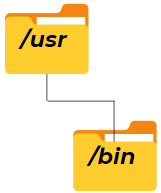
Now we also have a “User” directory with its own /bin and /sbin directories. The binaries or applications here are non-essential to the operating system and are intended for the end user.
5. 📂/usr/local/bin #

You'll also notice a “Local” directory under /usr. It contains any binaries that you compile manually to provide a safe space that won't conflict with any software installed by the system package manager.
6. 📂/etc #

Now at some point, you may want to customise the behaviour of the software installed on your system. The /etc directory stands for “Etcetera” or “Editable text Configuration”. Many of the files in this directory end with .conf and they're typically just text based config files that you can modify in your code editor.
7. 📂/home #

As an operating system, Linux can support multiple users. In the /home directory you'll find a folder named after each user registered on the system. It contains the files, configuration and software for that user and you need to be logged in as that user or root user to modify it.
8. 📂/boot #

It contains files needed to boot the system, like the Linux Kernel itself.
9. 📂/dev #

Then we have /dev which stands for “Device Files”. Here you can interact with hardware or drivers as if they are regular files. You might create disk partitions here.
10. 📂/opt #

The /opt directory contains optional or add-on software, and you will rarely interface with it.
11. 📂/var #

/var contains variable files that will change as the operating system is being used. Things like logs and cache files stay here.
12. 📂/tmp #

/tmp is for temporary files that won't be persisted between reboots.
13. 📂/lost+found #

/lost+found as the name suggests, contains files that are typically unlinked (i.e. their name had been erased) but still opened by some process (so the data wasn't erased yet). These files are prone to be deleted due to multiple reasons such as kernel panic, power failure and hardware or software bugs.
You don't need to care about them, these files may or may not contain useful data, and even if they do, they may be incomplete or out of date.
14. 📂/proc #

This is probably the weirdest directory of all. The /proc directory is an illusionary file system that doesn't actually exist on the disk, but is created in memory on the fly by the Linux kernel to keep track of running processes.

Now you hopefully know what these directories mean and what they are used for.😄
Make sure to react to this blog if you liked it, comment down your feedback and compulsorily Join Kubesimplify community for more awesome tech content.
Get new posts in your inbox.
Spotted a typo or want to improve this post? Edit on GitHub →