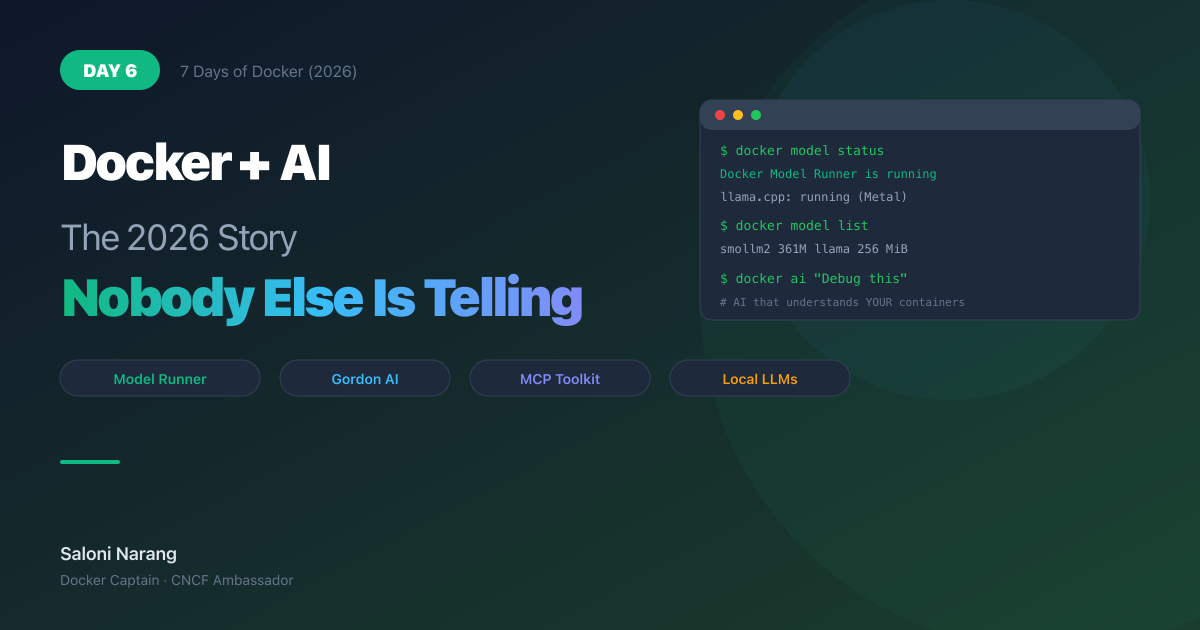
Day 6: Run an LLM on Your Laptop - With Docker
"Pull AI models from Docker Hub, run them locally with GPU acceleration, and build an AI-powered app

New to the jargon? Every term, flag, and benchmark number here is explained in plain English in the local LLM glossary.
On this page (15)
7 Days of Docker (2026) - A Docker Captain's guide. Not your average tutorial.
I'm a Docker Captain. And if you'd told me two years ago that I'd be pulling AI models from Docker Hub the same way I pull nginx, I would've laughed.
I'm not laughing anymore.
Docker shipped something called Model Runner. It lets you pull, run, and serve Large Language Models locally - no Python environment, no conda, no CUDA drivers, no dependency hell. One command. The model runs on your hardware with GPU acceleration. And it exposes an OpenAI-compatible API that any app can talk to.
Today we're going to pull a model, talk to it, build a real app that uses it, containerize that app, and deploy the whole thing with Compose. By the end of this post, you'll have a working AI-powered API running on your laptop. No cloud. No API keys. No monthly bill.
Pull a Model Like You Pull an Image #
docker model pull ai/smollm2Using cached model: 256.35 MiBThat's it. 256 megabytes. A small but capable language model, pulled from Docker Hub using the same infrastructure that serves container images. Same content-addressable storage, same caching.
Check what you have:
docker model listMODEL NAME PARAMETERS QUANTIZATION ARCHITECTURE MODEL ID SIZE
smollm2 361.82 M IQ2_XXS/Q4_K_M llama 354bf30d0aa3 256.35 MiBLook familiar? Same format as docker images. Model name, ID, size.
Talk to It #
docker model run ai/smollm2 "What is Kubernetes in one sentence?"Kubernetes is a container orchestration platform that automates the deployment,
scaling, and management of microservices-based applications.That ran locally. On my Mac. With Metal GPU acceleration. No internet required after the initial pull.
Check the runner status:
docker model statusDocker Model Runner is running
llama.cpp: running llama.cpp latest-metal e365e65latest-metal means it's using Apple Silicon GPU acceleration via Metal. On Linux with NVIDIA, you'd see a CUDA tag. Docker picks the right backend automatically.
Model Runner supports multiple inference backends:
| Backend | Platform | Models |
|---|---|---|
| llama.cpp + Metal | Mac (default) | GGUF models from Docker Hub (~340 tok/s) |
| vllm-metal | Mac (install required) | MLX models from Hugging Face (~275 tok/s) |
| vLLM + CUDA | Linux with NVIDIA GPU | Production inference |
| Diffusers | Linux/NVIDIA | Image generation (Stable Diffusion) |
Want MLX models? Install vllm-metal #
llama.cpp + Metal is the default and handles GGUF models from Docker Hub. But if you want to run MLX models - Apple's native ML framework, designed for Apple Silicon's unified memory architecture - you can install the vllm-metal backend:
docker model install-runner --backend vllmInstalling vllm backend...
vllm backend installed successfullyCheck the status - both backends now running:
BACKEND    STATUS         DETAILS
llama.cpp  Running        llama.cpp latest-metal e365e65
vllm       Running        vllm-metal v0.1.0-20260320-122309
diffusers  Not Installed
mlx Not Installed package not installedMLX models live on Hugging Face (not Docker Hub). Pull one:
docker model pull hf.co/mlx-community/Llama-3.2-1B-Instruct-4bitThe same API (localhost:12434/v1/) serves both backends - Docker routes to the right one based on model format.
Watch out: You might see
docker model install-runner --backend mlx --gpu metalsuggested online or even by Gordon (Docker's AI assistant). On Docker Desktop, this fails with "Standalone installation not supported." The correct command is--backend vllm, which installs vllm-metal on Mac automatically. Themlxflag is for standalone Docker Engine only.
Here's the same question hitting both backends on my M2 - same API, same endpoint, different models:
Here's the same question hitting both backends on my M2 - same API, same endpoint:
# llama.cpp backend - SmolLM2 (362M params, GGUF from Docker Hub)
curl localhost:12434/v1/chat/completions \
-d '{"model":"ai/smollm2", "messages":[{"role":"user","content":"What is a Docker container?"}]}'"A Docker container is a lightweight, isolated, and self-contained runtime
environment that encapsulates an application and its dependencies."
74 tokens# vllm-metal backend - Llama 3.2 1B (1B params, MLX from Hugging Face)
curl localhost:12434/v1/chat/completions \
-d '{"model":"hf.co/mlx-community/Llama-3.2-1B-Instruct-4bit", ...}'"A Docker container is a lightweight, fully virtualized, and managed package
that performs a consistent version of an application, allowing it to be easily
deployed, scaled, and managed across multiple hosts and environments."
84 tokensTwo different models, two different backends, one API. Your app code doesn't change when you switch.
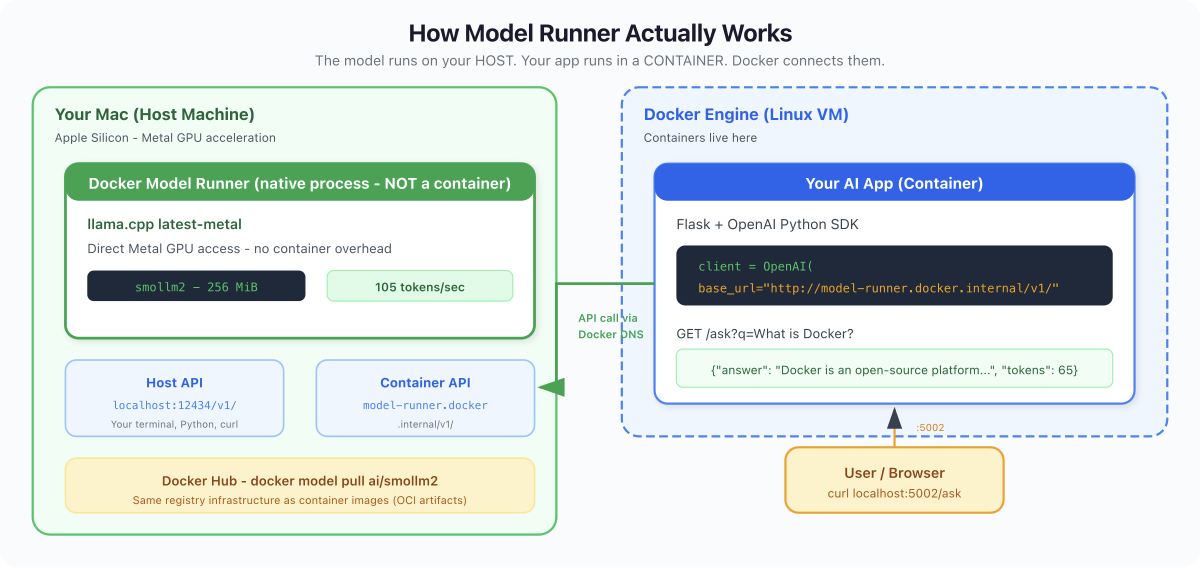
What Nobody Tells You: Model Runner doesn't run models inside containers. It runs them directly on your host hardware - Metal on Mac, CUDA on Linux. The llama.cpp process is a native binary on your host, not inside a container namespace. Why? Performance. LLMs need direct GPU access. Container isolation adds overhead. Docker's role here is distribution (pull from Hub) and API (OpenAI-compatible endpoint). The container is the app that CALLS the model, not the model itself.
The API - This Changes Everything #
Model Runner exposes an OpenAI-compatible API. Two endpoints depending on where you're calling from:
| Calling from... | URL |
|---|---|
| Your Mac (terminal, Python, VS Code) | http://localhost:12434/v1/ |
| Inside a Docker container | http://model-runner.docker.internal/v1/ |
This is important. model-runner.docker.internal is Docker's internal DNS - it only resolves from inside containers. From your Mac, use localhost:12434.
Try it:
curl http://localhost:12434/v1/chat/completions \
  -H "Content-Type: application/json" \
  -d '{
    "model": "ai/smollm2",
    "messages": [{"role": "user", "content": "Explain Docker volumes in 2 sentences"}],
    "max_tokens": 60
}'{
"choices": [{
"message": {
"role": "assistant",
"content": "A Docker volume is a data container that allows you to mount a file system onto other files or directories. It enables you to use volumes as a source or destination for files within your Docker container, improving the portability and extensibility of your applications."
}
}],
"usage": {
"prompt_tokens": 37,
"completion_tokens": 51,
"total_tokens": 88
}
}That's the standard OpenAI chat completions format. Switch localhost:12434 to api.openai.com, add an API key, and the same request hits GPT-4. Your code doesn't care which backend it talks to. Local model for dev, cloud for prod. Same interface.
What Nobody Tells You: If
curlfails with "Could not resolve host: model-runner.docker.internal" - you're running it from your Mac, not from inside a container. Uselocalhost:12434from the host. This trips up everyone the first time.
Build a Real AI App #
Enough theory. Let's build an AI-powered API, containerize it, and serve it with Compose.
The App (app.py) #
from flask import Flask, request, jsonify
from openai import OpenAI
import os

app = Flask(__name__)
client = OpenAI(
    base_url=os.environ.get("LLM_URL", "http://model-runner.docker.internal/v1/"),
    api_key="not-needed"
)

@app.route("/")
def home():
    return jsonify({"service": "AI Demo", "model": "smollm2"})

@app.route("/ask")
def ask():
    question = request.args.get("q", "What is Docker?")
    response = client.chat.completions.create(
        model="ai/smollm2",
        messages=[{"role": "user", "content": question}],
        max_tokens=100
    )
    return jsonify({
        "question": question,
        "answer": response.choices[0].message.content,
        "tokens": response.usage.total_tokens
    })

if __name__ == "__main__":
app.run(host="0.0.0.0", port=5000)Notice base_url reads from an environment variable. From inside a container, it'll use the Docker internal hostname. The api_key is "not-needed" because Model Runner doesn't require auth.
The Dockerfile #
FROM python:3.12-slim
WORKDIR /app
COPY requirements.txt .
RUN pip install --no-cache-dir -r requirements.txt
COPY app.py .
EXPOSE 5000
CMD ["python", "app.py"]The requirements.txt #
flask==3.1.1
openai==1.82.0compose.yaml #
services:
  ai-app:
    build: .
    ports:
      - "5002:5000"
    environment:
- LLM_URL=http://model-runner.docker.internal/v1/The LLM_URL environment variable tells the container to use the Docker-internal endpoint.
Run It #
docker compose up -d --build Image d6-ai-app-ai-app Built
Network d6-ai-app_default Created
Container d6-ai-app-ai-app-1 StartedTest It #
curl http://localhost:5002/{"model": "smollm2", "service": "AI Demo"}curl "http://localhost:5002/ask?q=What+is+a+container+in+one+sentence"{
"answer": "A container is a lightweight package that runs applications and provides a controlled environment for the application's dependencies, allowing for easier deployment and scaling.",
"question": "What is a container in one sentence",
"tokens": 65
}That's a containerized Flask app, calling a local LLM via Docker Model Runner, returning AI-generated answers. No cloud API. No API key. No monthly bill. Running on your laptop.
docker compose downWhat Else Is New - The Quick Version #
Model Runner is the headline, but Docker shipped more AI tooling in 2026:
Gordon (docker ai) - Docker's built-in AI assistant. It reads your project - Dockerfiles, Compose files, running containers - and gives context-specific answers. Not generic ChatGPT. It sees your actual environment.
docker ai "Why is my container using so much memory?"Note: If you have many MCP servers configured, Gordon may error with "too many tools." Disable unused MCP servers in Docker Desktop settings to fix it.
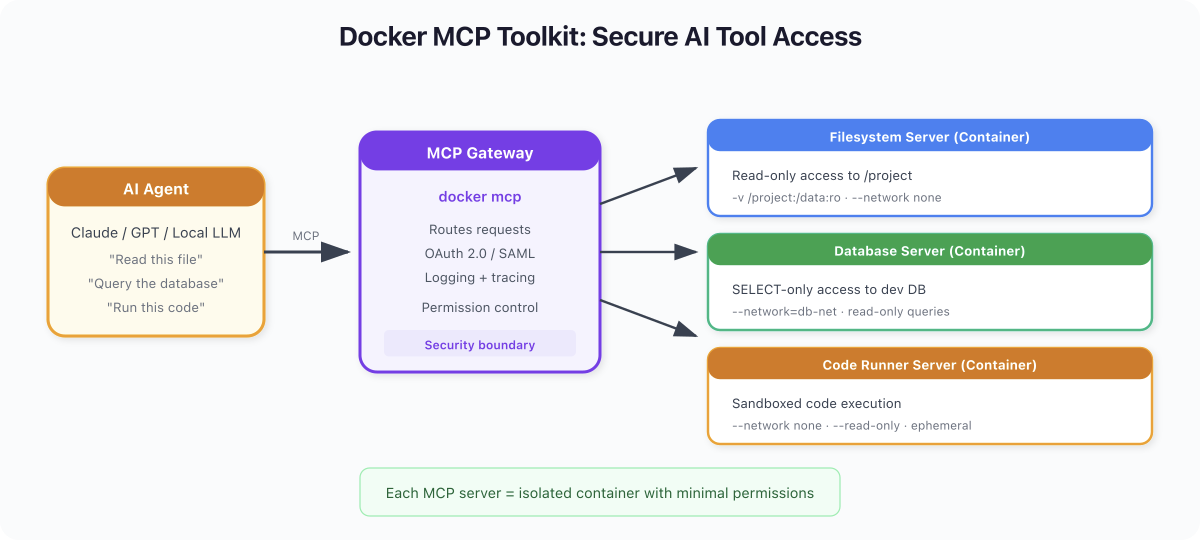
MCP Toolkit (docker mcp) - Model Context Protocol is a standard for connecting AI agents to tools. Docker runs MCP servers inside isolated containers with restricted permissions. Think of it as a security layer between AI agents and your system.
Docker Scout - Already covered in Day 2, but worth repeating: scan your AI app images too. AI dependencies (PyTorch, transformers, etc.) are massive and often carry CVEs.
Docker Sandboxes - Run AI agents inside dedicated MicroVMs with their own kernel and private Docker daemon. Not containers - actual VM-grade isolation. Each agent session gets a disposable environment where it can clone repos, run tests, and build images without any path back to your host. Works with Claude Code, Codex, Copilot, and others. Install with brew install docker/tap/sbx.
Docker's AI story in 2026 goes well beyond "run containers." It's Model Runner for local inference, Gordon for context-aware assistance, MCP for secure tool access, Sandboxes for agent isolation, and Scout for supply chain security. All shipping today.
The Big Picture #
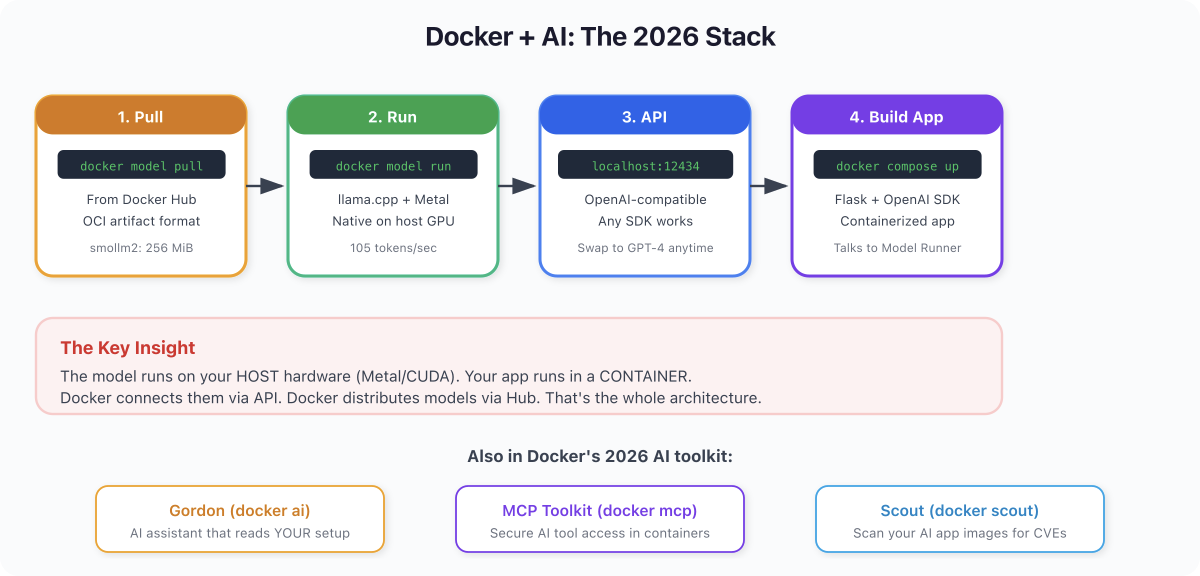
Docker in 2026 is two things:
-
A container platform (Days 1-5) - build, ship, run applications
-
An AI development platform (Day 6) - pull models, run local inference, build AI apps
The second part is new. And it's growing fast. Docker Hub already hosts Llama, Mistral, Phi, Gemma, SmolLM, and others in GGUF format with various quantization levels.
The OpenAI-compatible API is the killer feature. Write your app against the OpenAI interface. During development, point it at localhost:12434 - free, fast, private. In production, swap to the real OpenAI API or any other compatible provider. Your code doesn't change.
Quick Reference #
| Command | What It Does |
|---|---|
docker model pull ai/smollm2 | Pull a model from Docker Hub |
docker model run ai/smollm2 "prompt" | Chat with a model |
docker model list | List downloaded models |
docker model status | Check runner status and backend |
docker model rm ai/smollm2 | Remove a model |
docker ai "question" | Ask Gordon (context-aware) |
docker mcp --version | Check MCP Toolkit version |
curl localhost:12434/v1/models | List models via API (from host) |
curl localhost:12434/v1/chat/completions | Chat completions API (from host) |
Tomorrow: Day 7 #
You just built an AI-powered app with Docker. From docker model pull to a working API in minutes.
Tomorrow is the finale. Day 7: Ship It. We take everything from the past 6 days and make it production-ready. Non-root users. Read-only filesystems. Resource limits. Security scanning. The checklist that separates side projects from production systems.
Get new posts in your inbox.
Spotted a typo or want to improve this post? Edit on GitHub →