Day 5: Docker Compose - How Docker Actually Gets Used
7 Days of Docker in 2026 - From docker run Chaos to Declarative Stacks Nobody types docker run with 15 flags in real life. I’ve been learning and working…

On this page (33)
- Table of Contents
- 1\. What Is Docker Compose?
- 2\. The Compose File — Anatomy of a Stack
- 3\. Hands-On: Flask + Redis Visit Counter
- Project Structure
- The Flask Application (app.py)
- The Dockerfile
- requirements.txt
- The Compose File (compose.yaml)
- Bring It Up
- Test It
- Inspect the Running Stack
- Tear It All Down
- 4\. Essential Compose Commands
- docker compose up
- docker compose down
- docker compose ps
- docker compose logs
- docker compose exec
- 5\. 2026 Features You Should Know
- Compose Watch (Hot Reload)
- Profiles
- The develop Section
- 6\. What Nobody Tells You
- Compose Creates a Default Network Automatically
- Compose Is NOT an Orchestrator
- Service Names Are Your DNS
- The Project Name Matters
- 7\. Quick Reference
- Commands
- Compose File Keys
- Key Takeaways
- What's Next: Day 6
7 Days of Docker in 2026 - From
docker runChaos to Declarative Stacks
Nobody types docker run with 15 flags in real life.
I’ve been learning and working with Docker for some time now. I’ve explored different setups, experimented a lot, and seen how teams actually use it beyond tutorials. And one thing becomes very clear: the moment you move past basic demos and into real development, you stop writing docker run commands by hand. You write a Compose file.
Everything you learned on Days 1 through 4 - images, Dockerfiles, volumes, container basics was preparation. Today is the day you learn how Docker actually gets used on real teams, in real codebases, every single day. Docker Compose takes all those individual concepts and wires them into one declarative file that anyone on your team can run with a single command.
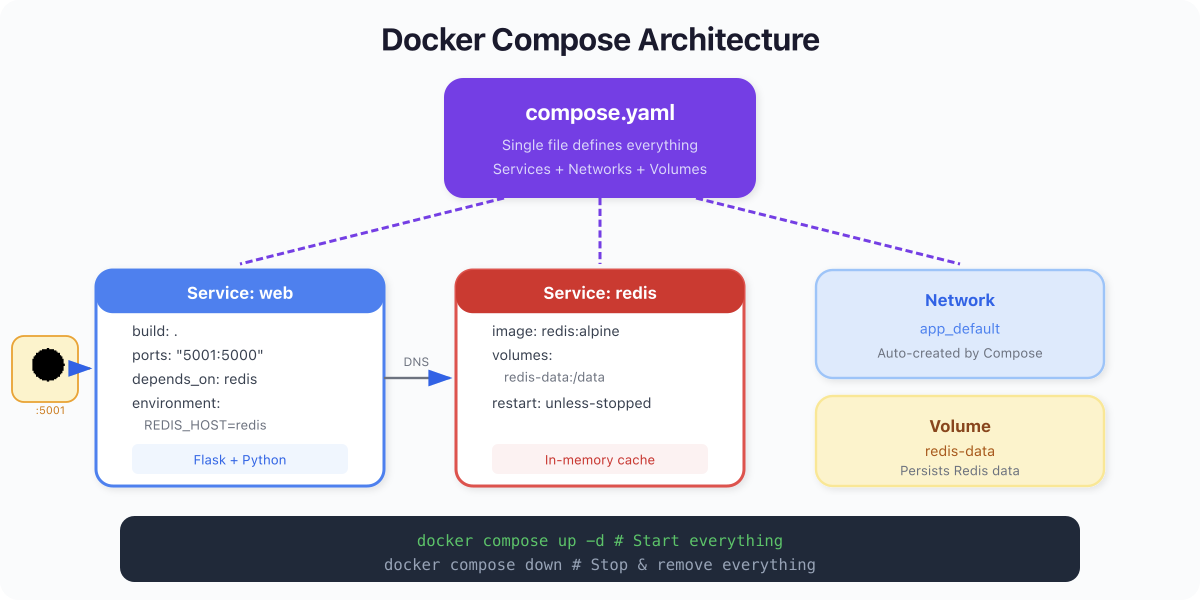
Table of Contents #
1. What Is Docker Compose? #
Docker Compose is a declarative tool for defining and running multi-container applications. You describe your entire stack - services, networks, volumes, environment variables - in a single YAML file. Then you run one command, and everything comes up.
Consider a Flask web app backed by Redis. Without Compose, your startup ritual looks like this:
docker network create myapp-net
docker volume create redis-data
docker run -d --name redis --network myapp-net -v redis-data:/data redis:alpine
docker build -t myapp-web .
docker run -d --name web --network myapp-net -p 5001:5000 -e REDIS_HOST=redis myapp-webFive commands, a dozen flags. And you have not even added health checks, restart policies, or teardown instructions. Now imagine six services instead of two. Now imagine onboarding a new developer.
With Compose, all of that becomes:
docker compose upOne file. One command. Every developer on the team gets the exact same stack.
| Without Compose | With Compose |
|---|---|
Scattered docker run flags | Single YAML file, version-controlled |
Manual docker network create | Automatic — created for you |
Manual docker volume create | Declared in the file, created automatically |
| You remember startup order | depends_on handles it |
| Teardown is 5+ commands | docker compose down removes everything |
Important: Docker Compose is not a separate install anymore. Since Docker Desktop 4.x and the Compose plugin for Docker Engine, the command is
docker compose(no hyphen). The olddocker-composebinary is legacy. Usedocker compose- always.
Let me verify we are on the same page:
docker compose versionDocker Compose version v5.0.1Good. Let's build something.
2. The Compose File — Anatomy of a Stack #
The Compose file is named compose.yaml (the older docker-compose.yml still works, but compose.yaml is the modern standard). Here is the file we will use for our hands-on exercise, fully annotated:
services:            # Required: every container in your stack
  web:               # Service name — also becomes the DNS hostname
    build: .         # Build from the Dockerfile in the current directory
    ports:
      - "5001:5000"  # Map host port 5001 to container port 5000
    environment:
      - REDIS_HOST=redis
    depends_on:
      - redis        # Start redis before web

  redis:             # Second service — a Redis server
    image: redis:alpine     # Use a prebuilt image (no build needed)
    volumes:
      - redis-data:/data    # Persist Redis data to a named volume

volumes:             # Top-level: declares named volumes
redis-data: # Docker manages this volume's entire lifecycleThat is the entire definition for a two-service application with persistent storage. Let me break down the key sections.
services is the core of every Compose file. Each key (web, redis) becomes a running container. Critically, each service name also becomes a DNS hostname on the Compose network. When web connects to redis:6379Docker resolves that name automatically.
build tells Compose to build an image from a Dockerfile. A dot (.) means "use the Dockerfile in the current directory."
image tells Compose to pull a prebuilt image from a registry. A service uses build, image, or both.
ports maps host ports to container ports. Format: "HOST:CONTAINER". Only expose what you need to access from outside Docker.
volumes at the service level, mounts storage into the container. At the top level, it declares named volumes that Docker manages and persists across restarts.
depends_on controls startup order. Redis starts before the web app. In production setups, you would pair this with condition: service_healthy a healthcheck, but for development, the simple form works fine.
3. Hands-On: Flask + Redis Visit Counter #
Time to build a real multi-container application. A Flask web app that counts visits, backed by Redis.
Project Structure #
d5-compose/
├── app.py
├── Dockerfile
├── requirements.txt
└── compose.yamlThe Flask Application (app.py) #
from flask import Flask, jsonify
import redis
import os

app = Flask(__name__)

r = redis.Redis(
    host=os.environ.get("REDIS_HOST", "redis"),
    port=int(os.environ.get("REDIS_PORT", 6379)),
    decode_responses=True
)

@app.route("/")
def home():
    count = r.incr("visits")
    return jsonify(visits=count)

@app.route("/health")
def health():
    try:
        r.ping()
        return jsonify(status="healthy", redis="connected"), 200
    except redis.ConnectionError:
        return jsonify(status="unhealthy", redis="disconnected"), 503

if __name__ == "__main__":
app.run(host="0.0.0.0", port=5000)Two endpoints. The root / increments a counter in Redis and returns it. The /health endpoint verifies Redis connectivity. Simple, testable, real.
The Dockerfile #
FROM python:3.13-slim

WORKDIR /app

COPY requirements.txt .
RUN pip install --no-cache-dir -r requirements.txt

COPY app.py .

EXPOSE 5000

CMD ["python", "app.py"]requirements.txt #
flask==3.1.1
redis==5.3.0The Compose File (compose.yaml) #
services:
  web:
    build: .
    ports:
      - "5001:5000"
    environment:
      - REDIS_HOST=redis
    depends_on:
      - redis

  redis:
    image: redis:alpine
    volumes:
      - redis-data:/data

volumes:
redis-data:Bring It Up #
docker compose up --build -d[+] Building 11.8s (9/9) FINISHED
=> [web internal] load build definition from Dockerfile
=> [web] FROM python:3.13-slim
=> [web] COPY requirements.txt .
=> [web] RUN pip install --no-cache-dir -r requirements.txt
=> [web] COPY app.py .
=> [web] exporting to image
[+] Running 4/4
✔ Volume "d5-compose_redis-data" Created
✔ Network d5-compose_default Created
✔ Container d5-compose-redis-1 Started
✔ Container d5-compose-web-1 StartedRead that output. Compose did four things:
-
Built the
webimage from the Dockerfile. -
Created a volume called
d5-compose_redis-datafor Redis persistence. -
Created a network called
d5-compose_defaultand attached both services. -
Started containers in dependency order — Redis first, then web.
The naming convention is <project>_<resource> for networks and volumes, <project>-<service>-<n> for containers. The project name defaults to the directory name.
Test It #
curl http://localhost:5001{"visits":1}curl http://localhost:5001{"visits":2}curl http://localhost:5001{"visits":3}The counter increments with every request. The data lives in Redis, not in the Flask process, so it persists across app restarts. This is how real applications work -stateless compute, stateful storage.
Inspect the Running Stack #
docker compose psNAME IMAGE SERVICE STATUS PORTS
d5-compose-redis-1 redis:alpine redis Up 4 seconds 6379/tcp
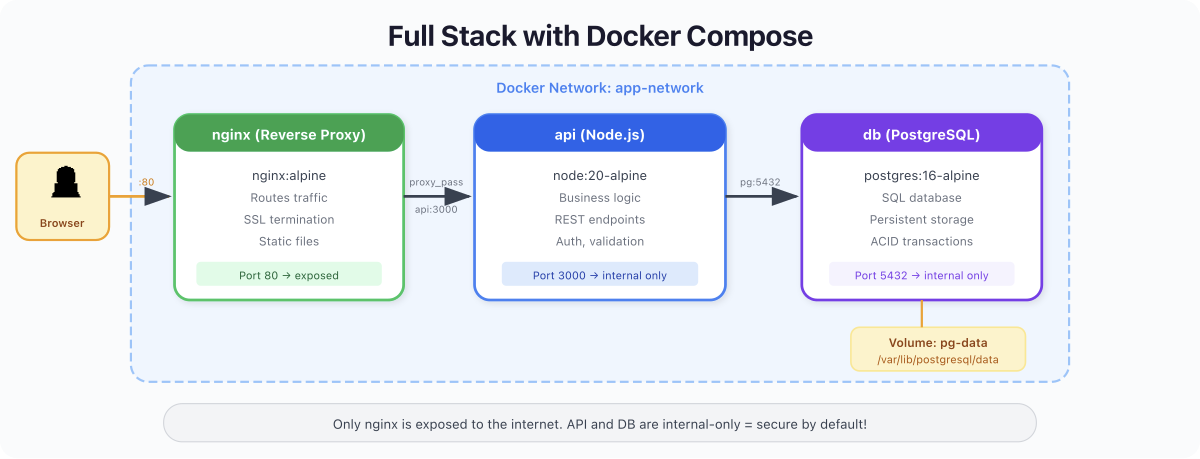
d5-compose-web-1 d5-compose-web web Up 4 seconds 0.0.0.0:5001->5000/tcpBoth containers running. The web service is mapped to port 5001. Redis exposes 6379 internally to the Compose network but is not mapped to the host — exactly right. Your database should never be directly reachable from outside.
Tear It All Down #
docker compose down -v[+] Running 4/4
✔ Container d5-compose-web-1 Removed
✔ Container d5-compose-redis-1 Removed
✔ Volume d5-compose_redis-data Removed
✔ Network d5-compose_default RemovedOne command. Containers, volume, network — all cleaned up. The -v flag removes named volumes, too. Without it, volumes persist so your data survives rebuilds. In development, I use down -v constantly to start fresh. In staging, keep the volumes.
4. Essential Compose Commands #
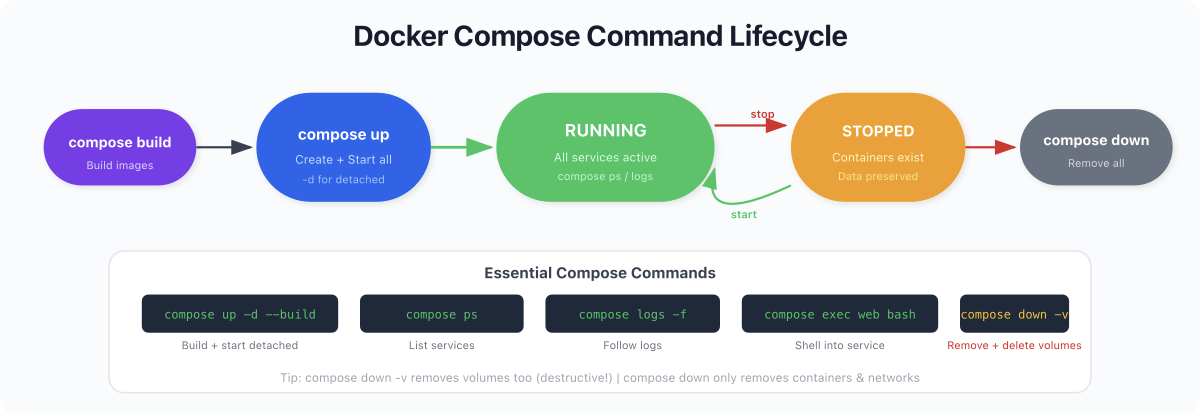
These are the five commands you will use every day. Learn them well.
docker compose up #
# Foreground (logs stream to terminal)
docker compose up

# Detached (background)
docker compose up -d

# Rebuild images before starting (use after code changes)
docker compose up --build

# Start only specific services
docker compose up redisdocker compose down #
# Remove containers + networks
docker compose down

# Also remove volumes (wipes data!)
docker compose down -v

# Also remove built images
docker compose down --rmi alldocker compose ps #
NAME                 IMAGE            COMMAND                  SERVICE   CREATED              STATUS              PORTS
dockerday5-redis-1   redis:alpine     "docker-entrypoint.s…"   redis     About a minute ago   Up About a minute   6379/tcp

dockerday5-web-1 dockerday5-web "python app.py" web About a minute ago Up About a minute 0.0.0.0:5001->5000/tcp, [::]:5001->5000/tcpLists running services, their status, and port mappings. Your first command when debugging.
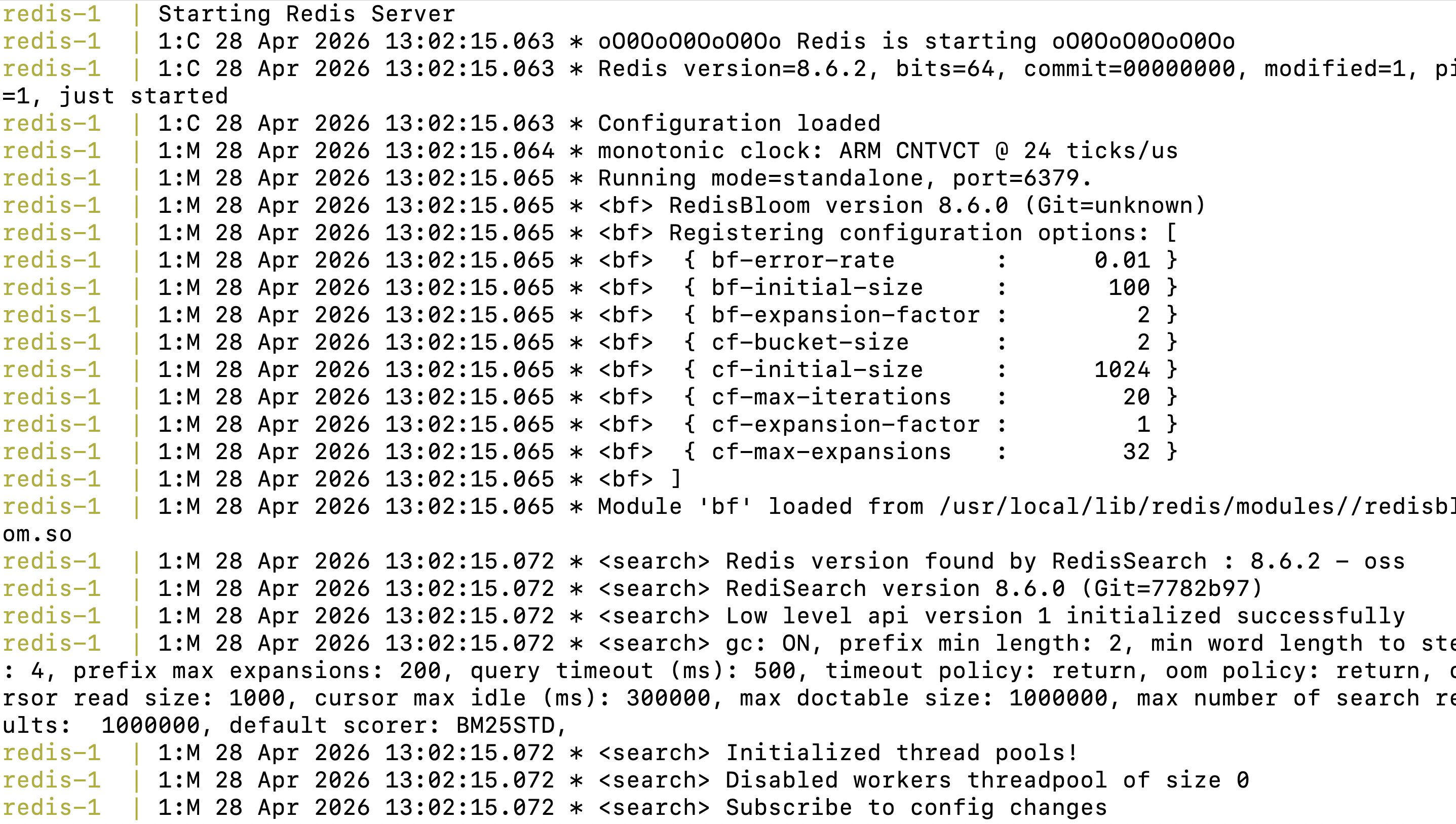
docker compose logs #
# All services
docker compose logs

# Follow a specific service in real time
docker compose logs -f web

# Last 50 lines from all services
docker compose logs --tail 50docker compose exec #
# Open a shell in a running container
docker compose exec web sh

# Run a one-off command
docker compose exec redis redis-cli GET visitsPro Tip: My actual development loop is:
docker compose up -d --build, hack on code, checkdocker compose logs -f web, repeat. When things get weird,docker compose down -v && docker compose up -d --buildgives you a clean slate in seconds.
5. 2026 Features You Should Know #
Compose has evolved significantly. If you learned it a few years ago, you are missing some genuinely useful capabilities.
Compose Watch (Hot Reload) #
This is the feature that changed my development workflow. Instead of rebuilding images after every code change, Compose Watch monitors your files and syncs changes directly into running containers.
services:
  web:
    build: .
    develop:
      watch:
        - action: sync
          path: ./app.py
          target: /app/app.py
        - action: rebuild
path: ./requirements.txtdocker compose watchWARN[0000] No services to build
[+] up 3/3
✔ Network dockerday5_default Created 0.1s
✔ Container dockerday5-redis-1 Created 0.1s
✔ Container dockerday5-web-1 Created 0.1s
none of the selected services is configured for watch, consider setting a 'develop' sectionNow edit app.py and save. The file is synced into the container instantly — no rebuild, no restart. Change requirements.txt and Compose triggers a full rebuild automatically because dependencies changed.
The develop section supports two actions:
-
sync— copies files into the container. Use for source code. -
rebuild— triggers a fulldocker compose up --build. Use for dependency files.
This is better than bind mounts for most use cases because it works consistently across macOS, Linux, and Windows, without the filesystem performance issues that plague bind mounts on Mac.
Profiles #
Profiles let you define optional services that only start when you explicitly activate them. This is how you handle dev/test/prod variations in a single file.
services:
  web:
    build: .
    ports: ["5001:5000"]

  redis:
    image: redis:alpine

  test-runner:
    build: .
    command: pytest
    profiles: [test]

  debug-tools:
    image: nicolaka/netshoot
profiles: [debug]# Normal development — only web and redis start
docker compose up -d
# Run tests — includes the test-runner service
docker compose --profile test up
# Debug networking — includes netshoot
docker compose --profile debug upServices without a profiles key always start. Services with profiles only start when that profile is activated. No more commenting out services in your Compose file.
The develop Section #
Beyond watch, the develop section is Compose's answer to the "inner loop" problem — the cycle of code, build, test, repeat. It gives you a structured way to declare which files trigger syncs and which trigger rebuilds, keeping your container up-to-date without manual intervention.
This is Docker's opinionated answer to the question every developer asks: "How do I get my code changes into the container without rebuilding everything?" And honestly, it works well.
6. What Nobody Tells You #
I have seen the same misconceptions trip up developers for years. Let me save you the trouble.
Compose Creates a Default Network Automatically #
This is the one that surprises people the most. You do not need to add a networks: section to your Compose file. Compose automatically creates a bridge network named <project>_default and attaches every service to it.
All services resolve each other by their service name. When your web app connects to redis:6379, Docker DNS on the default Compose network handles it. No network configuration, no IP addresses, no service discovery tools.
You almost never need explicit networks: in your Compose file. The only time you do is when you are running multiple Compose projects that need to communicate, or when you need network-level isolation between services within the same project (like separating frontend services from database services). For a single-project development setup, the default network is perfect.
Compose Is NOT an Orchestrator #
This is the big one, and I see it get teams into serious trouble.
Docker Compose is a development and testing tool. It runs containers on a single machine. It does not handle:
-
Multiple hosts - Compose cannot spread services across a cluster of servers.
-
Auto-scaling - It does not spin up more containers when traffic spikes.
-
Self-healing - If a container crashes,
restart: unless-stoppedwill restart it, but there is no real health-based orchestration. -
Rolling deployments - You cannot deploy a new version with zero downtime using Compose alone.
-
Service mesh, load balancing, secrets rotation - None of it.
That is what Kubernetes does. Compose is for your laptop. Kubernetes (or a managed platform like ECS, Cloud Run, or Fly.io) is for production.
I have seen startups try to run docker compose up -d on an EC2 instance and call it production. It works until it doesn't - and when it doesn't, you have no observability, no failover, and no way to deploy without downtime. Use Compose for what it is: the best local development tool in the container ecosystem.
Service Names Are Your DNS #
The service name you pick compose.yaml is not just a label. It is a real DNS entry on the Compose network. Name your services well: redis, postgres, api, web -not service1 or myapp. Your application code references these names directly as hostnames.
The Project Name Matters #
Compose derives the project name from your directory name by default. All resource names are prefixed with it: myproject_default (network), myproject_redis-data (volume), myproject-redis-1 (container). If you rename your directory, Compose creates all-new resources and orphans the old ones. Set it explicitly with name: at the top of your Compose file if this matters to you.
7. Quick Reference #
Commands #
| Command | What It Does |
|---|---|
docker compose up | Create and start all services |
docker compose up -d | Start in detached mode |
docker compose up --build | Rebuild images before starting |
docker compose down | Stop and remove containers + networks |
docker compose down -v | Also remove named volumes |
docker compose ps | List running services |
docker compose logs -f <svc> | Follow logs for a service |
docker compose exec <svc> <cmd> | Run command in running container |
docker compose stop | Stop without removing |
docker compose restart | Restart services |
docker compose watch | Start file-watching with hot reload |
docker compose config | Validate and display resolved config |
Compose File Keys #
| Key | Purpose |
|---|---|
services | Define containers in the stack |
build | Build image from Dockerfile |
image | Use a prebuilt image |
ports | Map host:container ports |
volumes | Mount volumes or bind mounts |
environment | Set environment variables |
depends_on | Define startup dependencies |
profiles | Assign services to named profiles |
develop | Configure watch and hot reload |
restart | Set restart policy |
healthcheck | Define container health probe |
networks | Attach to specific networks (usually not needed) |
Key Takeaways #
-
Docker Compose is how Docker actually gets used. One
compose.yamlreplaces dozens ofdocker runcommands and lives in your repo alongside your code. Every developer on the team gets the same stack. -
Networking is automatic. Compose creates a default network. Services find each other by name -
redis,web,postgres- with zero configuration. You almost never need to think about it. -
The workflow is
up,down, andlogs. Those three commands cover 90% of your daily Compose usage. Add--buildafter code changes,-vwhen you want a clean slate. -
Compose Watch is the new way to develop. Forget bind mounts with their cross-platform headaches. The
developsectionwatchgives you hot reload that works consistently everywhere. -
Compose is not production infrastructure. It is the best local development tool in the Docker ecosystem. For production, you need Kubernetes, ECS, or a managed platform. Do not confuse the two.
What's Next: Day 6 #
You have gone from typing docker run commands one at a time to defining full application stacks declaratively. That is a massive leap.
But your containers have been talking to each other on Compose's default network without you thinking about it. What happens when you need to control that communication? What if your frontend should reach the API but never the database directly?
In Day 6: Docker Networking - Connecting Containers, you will learn:
-
How Docker networking actually works under the hood
-
Bridge, host, and none network drivers - and when to use each
-
Custom bridge networks for DNS resolution and isolation
-
Network security: isolating tiers of your application
-
Multi-network architectures for real applications
The defaults Compose gave you today are great for development. Tomorrow, you will understand what is happening beneath them.
See you tomorrow.
Get new posts in your inbox.
Spotted a typo or want to improve this post? Edit on GitHub →